Creating a AppFolio integration
Last updated: July 16, 2025
This guide walks you through creating an integration with the AppFolio API. You will need access to the customer name, client ID, client secret, and developer ID.
Obtaining your AppFolio credentials
⚠ Depending on the version of AppFolio being used, you can either generate your credentials directly in the developer UI or you will need to request them from your customer.
On the dashboard, you will have the option to create a client ID and secret. Once created, view the Client ID, and copy the Client Secret.

You can obtain the developer ID from the URL of the developer dashboard: it will be the string after /customers. Example: in developer.appfolio.com/customers/66067d04-3d6b-11f0/, the developer ID would be
66067d04-3d6b-11f0.
Integrating with Propexo
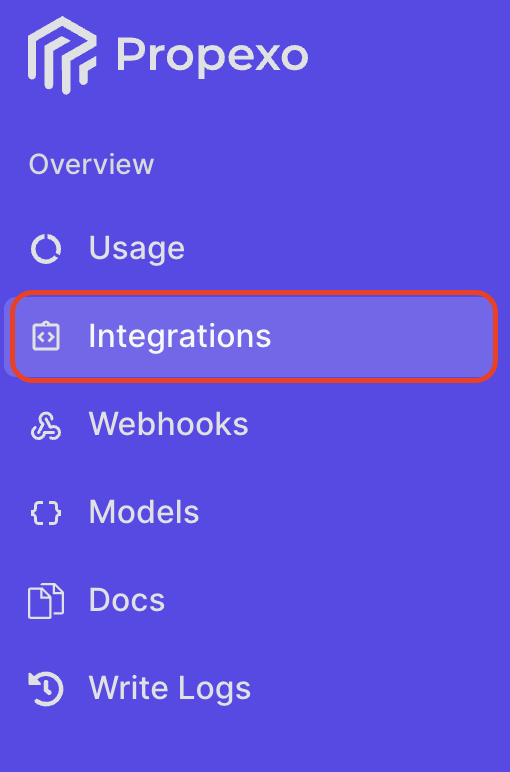
In Propexo, navigate to the integrations tab.
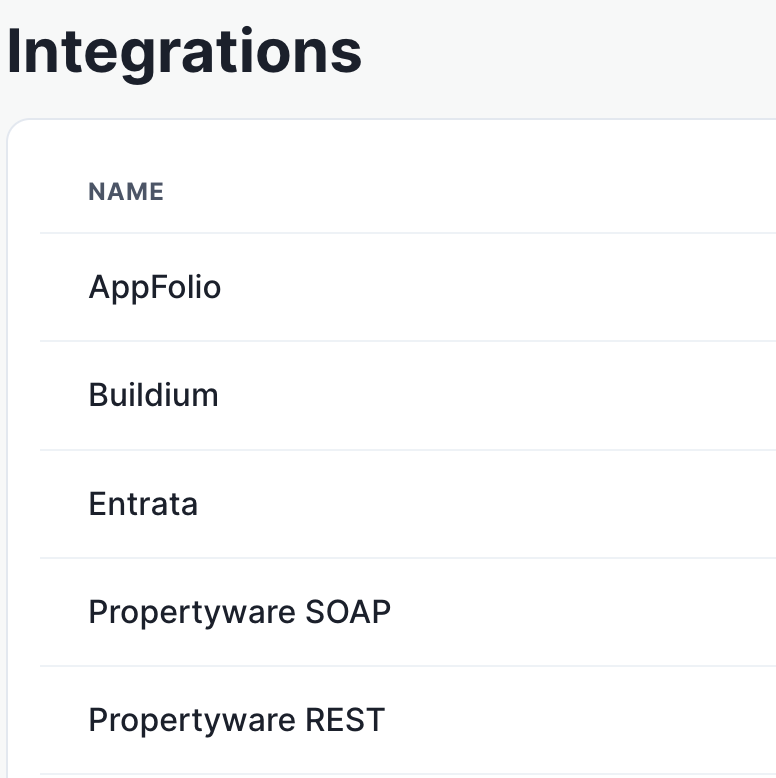
Then, select your relevant PMS from the list (AppFolio in this instance).
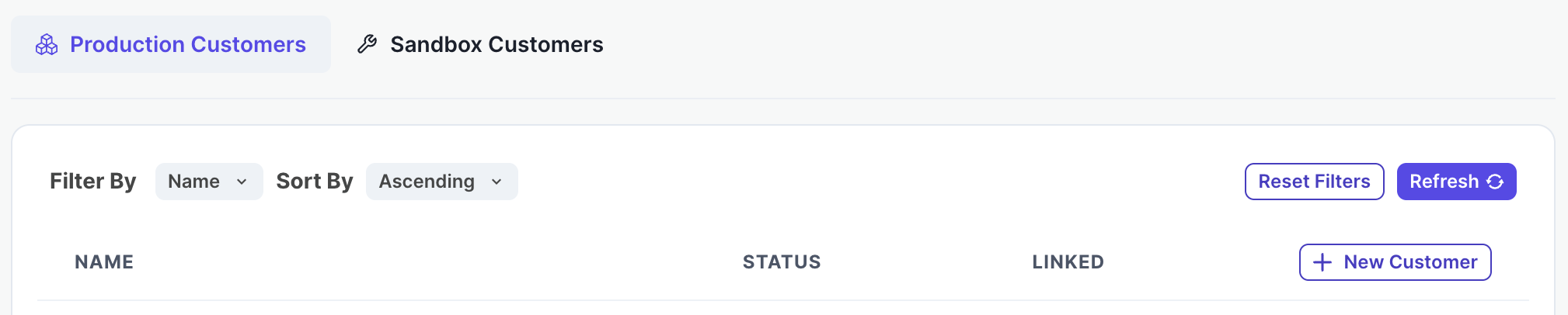
On the PMS page, select Production or Sandbox as necessary, then click New Customer.
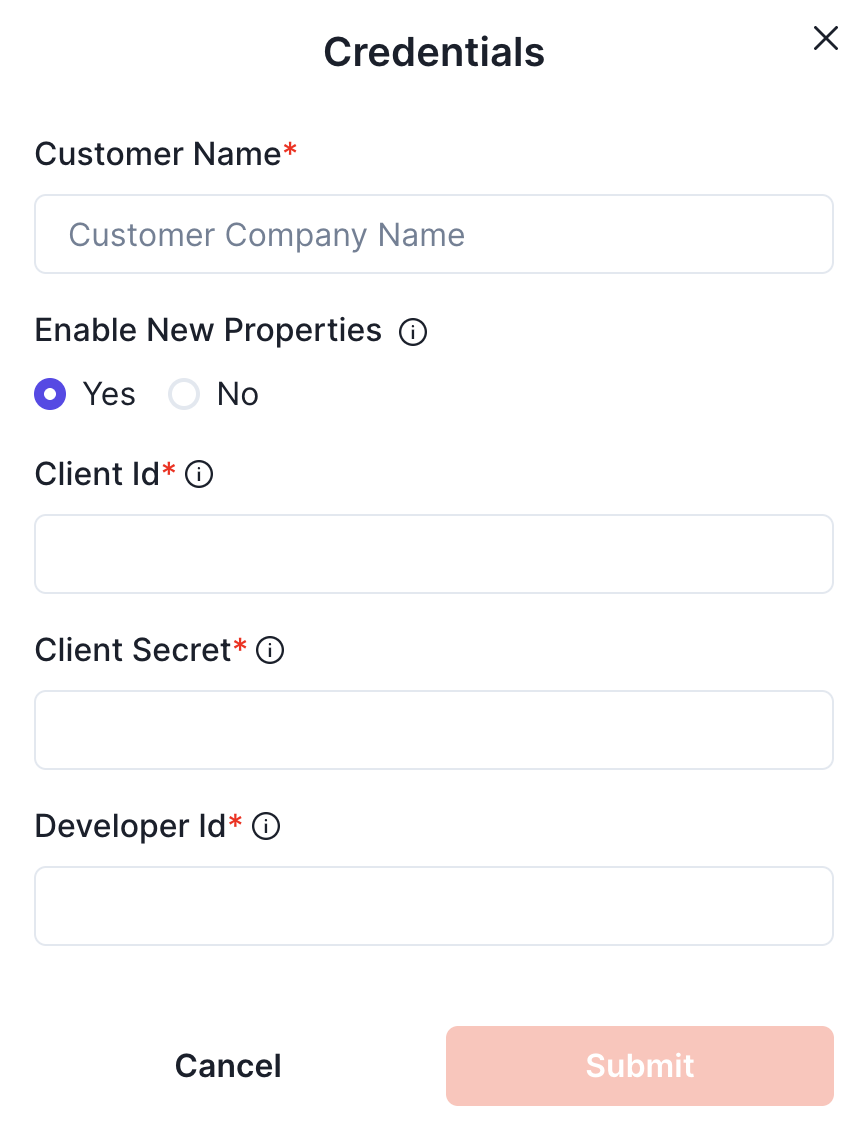
Enter your customer name, client ID, client secret, and developer ID, and submit.
Your integration should now be correctly set up. You can verify your connection by using the data access panel.