Creating an MRI integration
Last updated: March 16, 2026
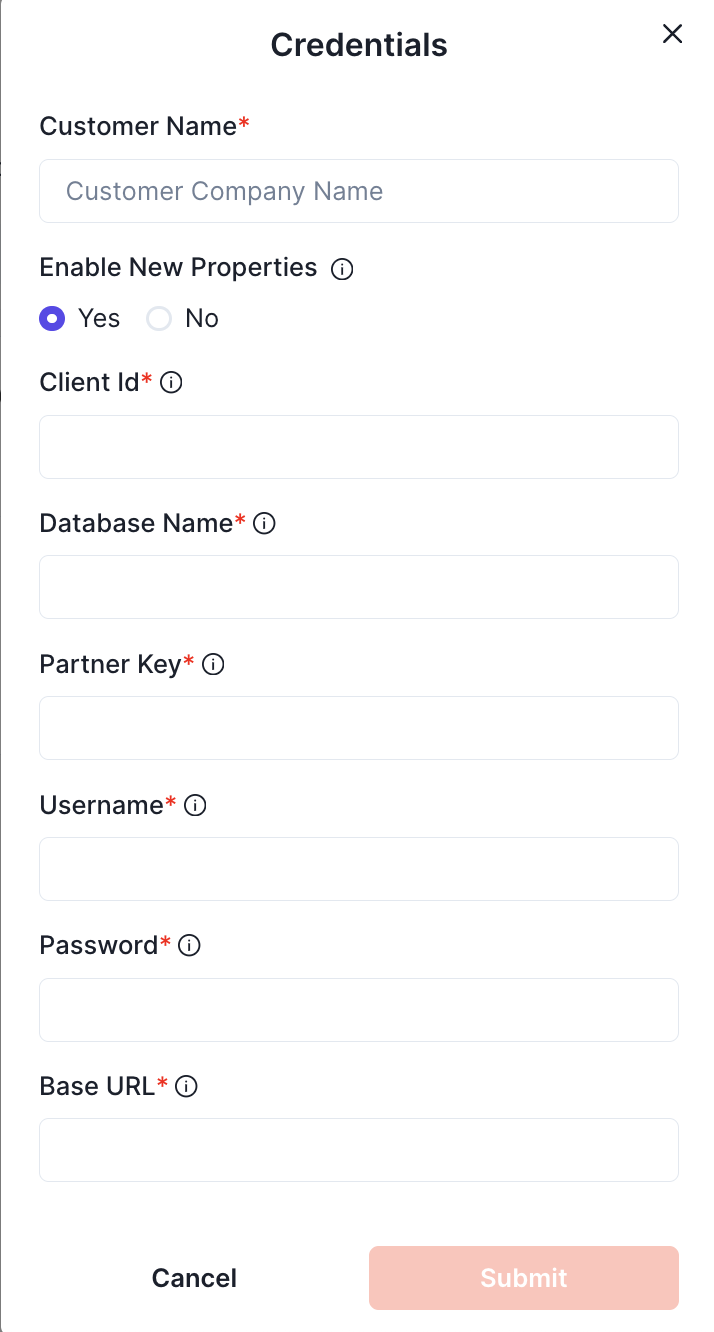
This guide walks you through creating an integration with the MRI API. You will need access to the customer name, client ID, database name, partner key, a username, a password, and a base URL.
You can obtain these credentials from MRI directly after becoming a certified partner, or use client-provided credentials from the MIX process. In both cases, your client will need to file a support ticket in the myMRI Client Portal.
Template support ticket for clients reaching out to request credentials
⚠ Please note you will need to be approved as a certified app partner, or have confirmed that the client is paying for MIX depending on the integration program used. The client will then need to submit a support case via the myMRI Client Portal requesting the following:
Hi MRI Support,
We’re setting up a test integration with Propexo and would like to request the following:
Please create a Web Services User ID and Password for our integration with Propexo.
Please apply the following cabinet(s) to our test database:
Database Name: [ENTER DATABASE NAME]
Cabinet Location: (To be filled in by MRI personnel once the case has been submitted)
Please grant the Web Services user access to the following APIs:
MRI_S-PMRM_GuestCardsBySiteID
MRI_S-PMRM_ResidentialLeadConversions
MRI_S-PMRM_ResidentialMarketingSources
MRI_S-PMRM_ResidentialLeasingConsultants
MRI_S-PMRM_ResidentialInteractionResults
MRI_S-PMRM_ResidentialFloorPlans
MRI_S-PMRM_ResidentialUnitAvailability
MRI_S-PMRM_ResidentialRentOffers
MRI_S-PMRM_ResidentialUnitFees
MRI_S-PMRM_ResidentialAmenities
Upon completion, please provide the following information:
Web Services User ID:
Web Services Password:
Client (Test) Database Name:
Client ID:
Partner Key:
MRI Version:
API Farm URL:
Let us know if you need anything else to complete this request.
Best,
[Your Name]
Integrating with Propexo
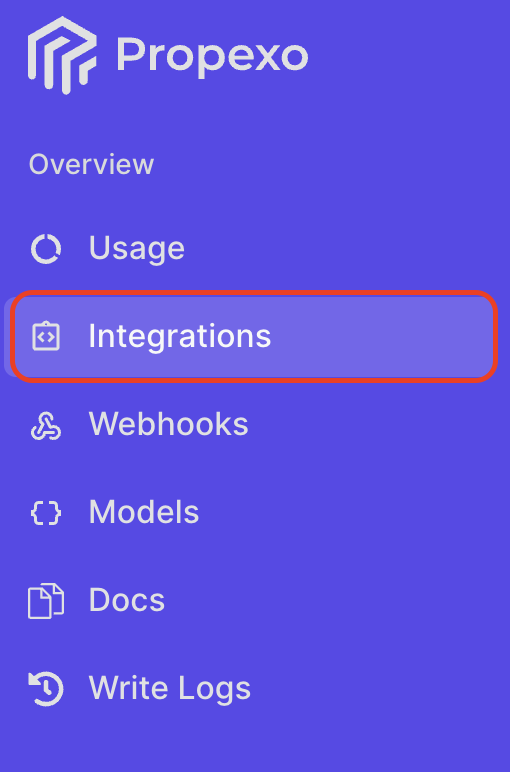
In Propexo, navigate to the integrations tab.
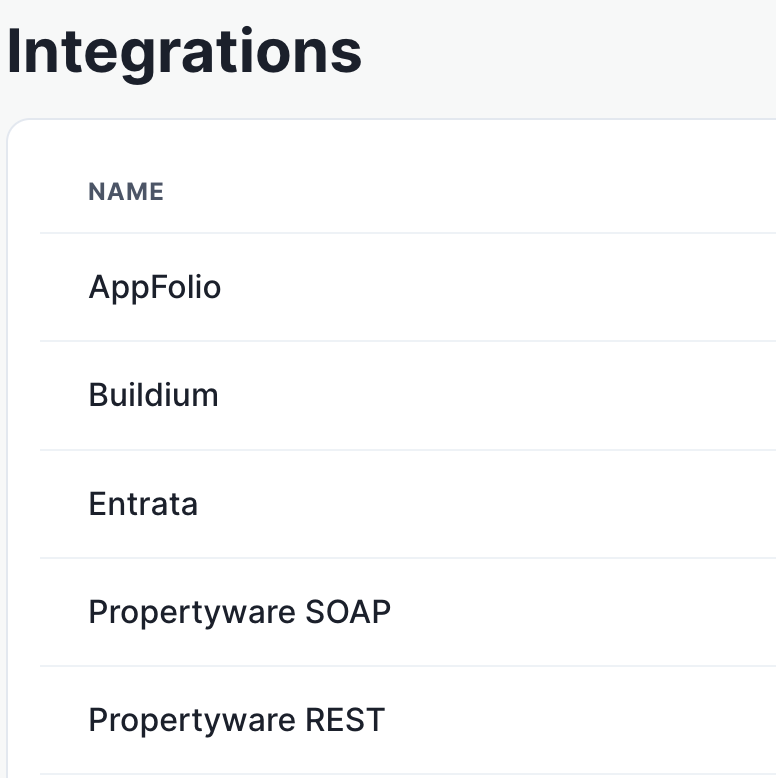
Then, select your relevant PMS from the list.
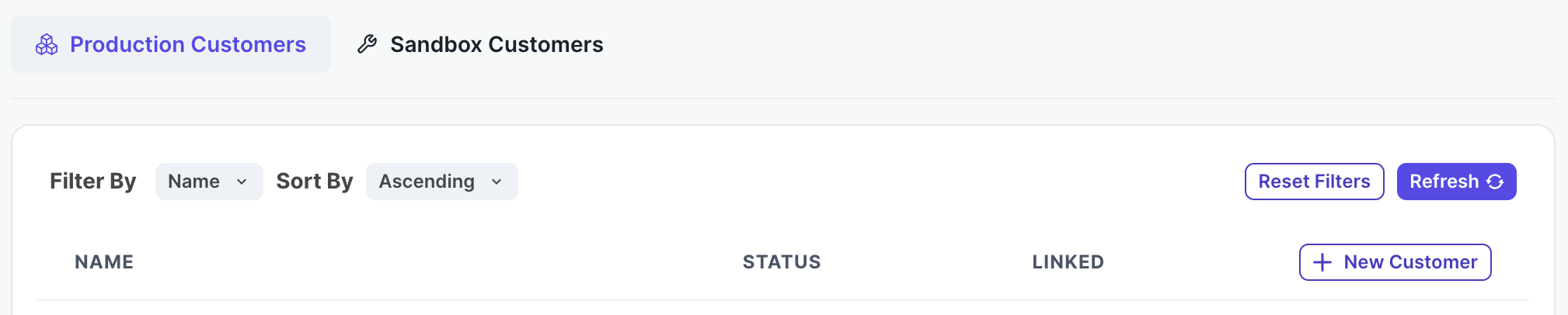
On the PMS page, select Production or Sandbox as necessary, then click New Customer.
Enter your customer name, client ID, database name, partner key, username and password, and the base URL.
Your integration should now be correctly set up. You can verify your connection by using the data access panel.