Creating a Rent Manager integration
Last updated: April 17, 2026
This guide walks you through creating an integration with the Rent Manager API. You will need access to the customer name, entity, and either a partner token or username and password.
Understanding and obtaining your credentials
After going through the Approval & QA Process for Rent Manager, you will be provided access to a web portal containing API docs. From there, you can obtain your credentials by heading to the API Test Client tab and generating your partner token.
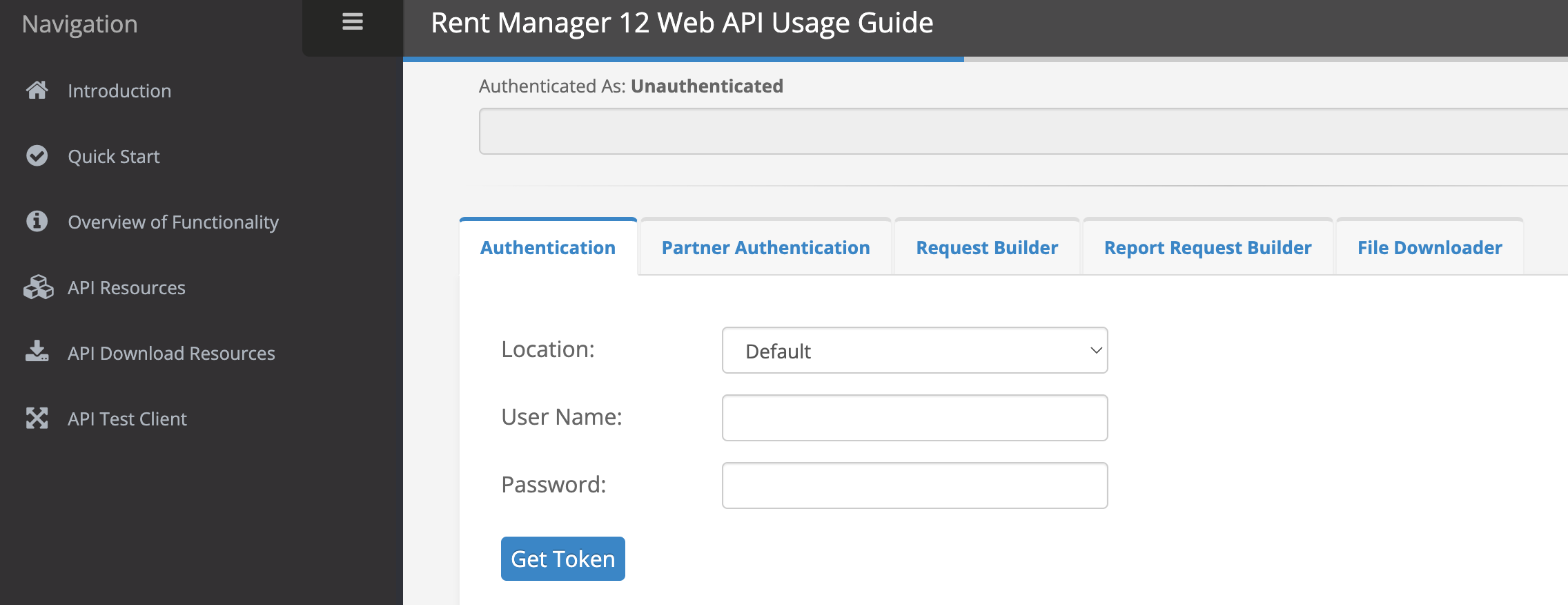
The entity name will be found in the url of this portal. For example, if the URL is propexo.api.rentmanager.com/Help/TestClient, the entity name will be propexo.
⚠ For all production integrations, you are required to use the partner token authentication approach.
Integrating with Propexo
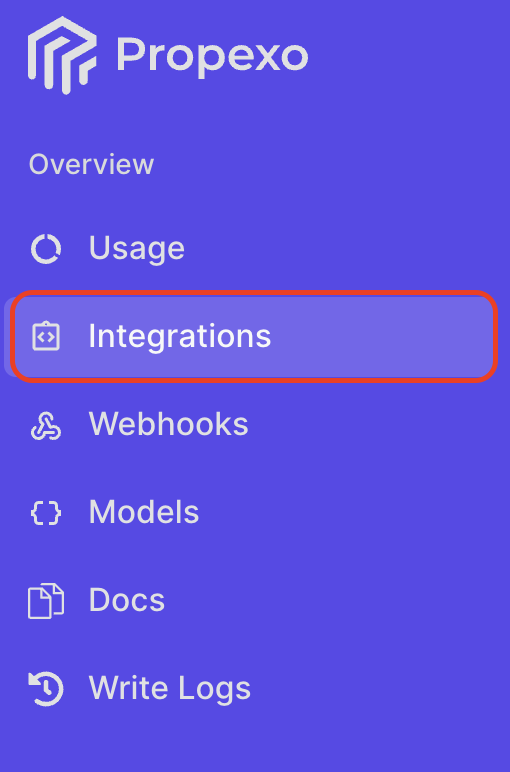
In Propexo, navigate to the integrations tab.
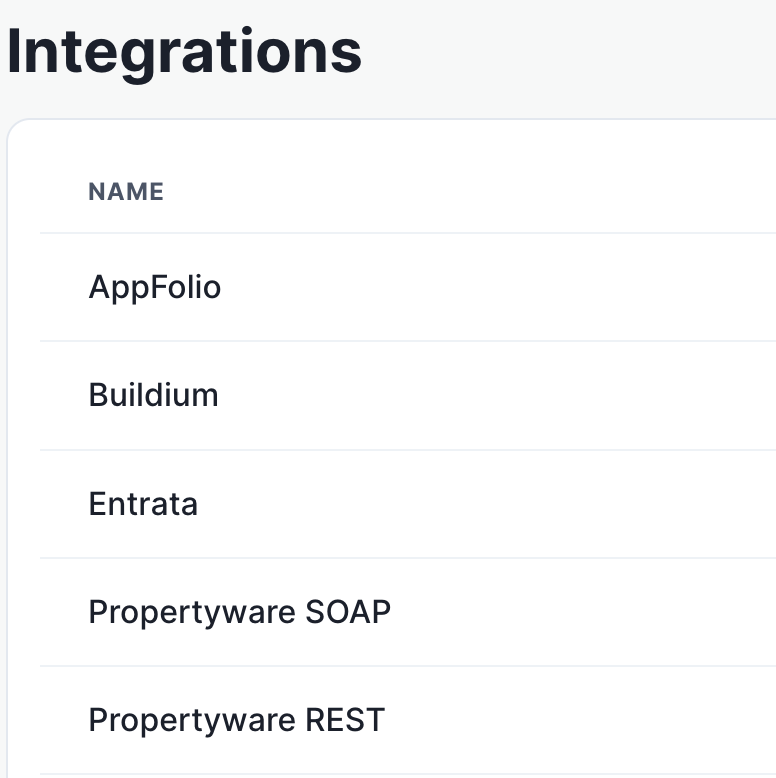
Then, select your relevant PMS from the list (Rent Manager in this instance).
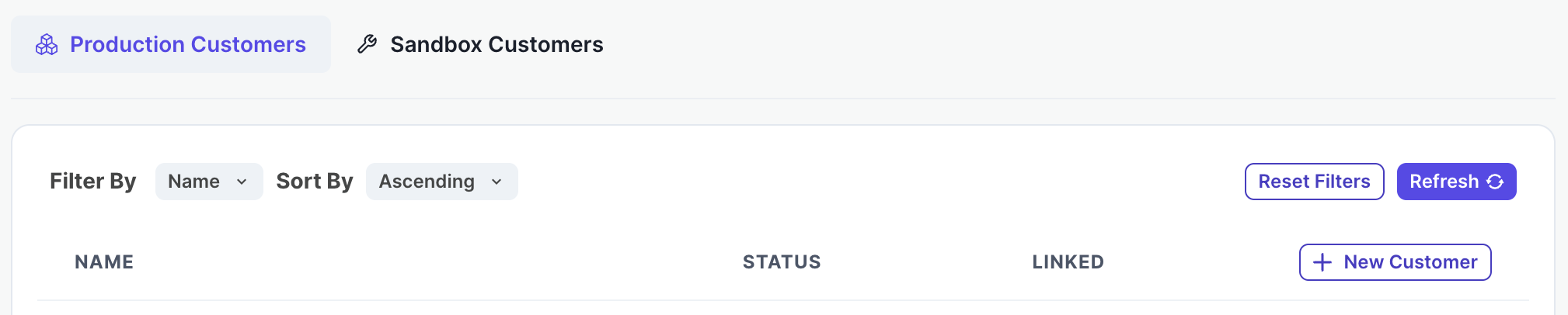
On the PMS page, select Production or Sandbox as necessary, then click New Customer.
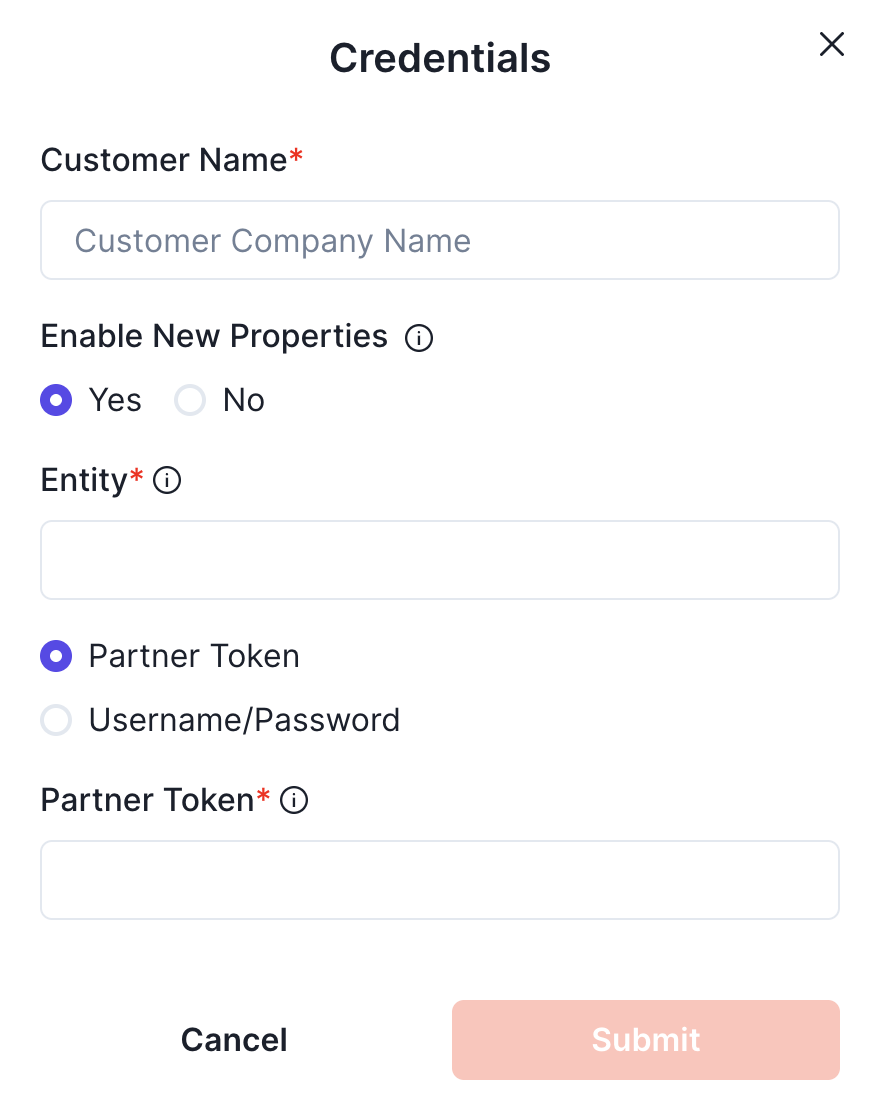
Enter the customer name, entity, select whether to enter a partner token or username and password combination, and enter accordingly.
⚠ For all production integrations, you are required to use the partner token authentication approach.
Whitelisting Propexo's IP address in Rent Manager
Rent Manager will return an error if the IP address making API requests is not whitelisted. Here are the steps needed:
In Propexo:
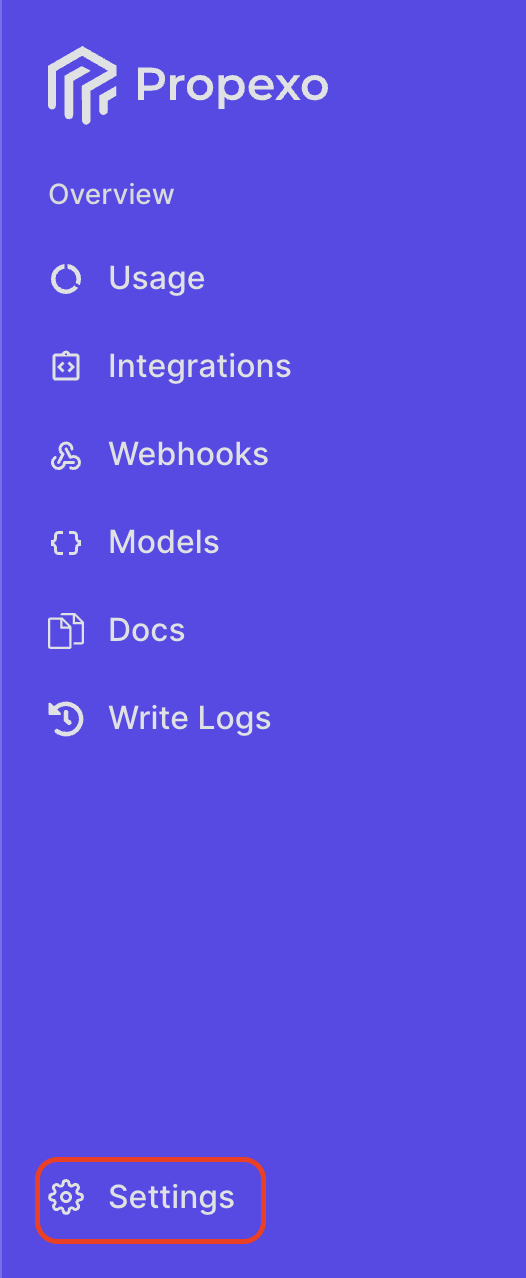
Head to the settings tab in your Propexo account.
Click "Provisioned IP addresses".
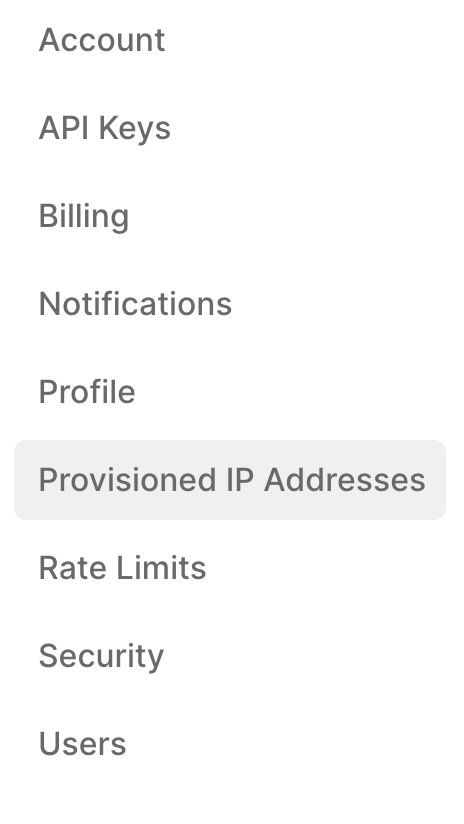
Click View IP Addresses to obtain the address to whitelist.
In Rent Manager:
Log into Rent Manager Partner Web Access.
If you haven't yet created your product:
Click "Add New Product" and follow the steps outlined. IP addresses to whitelist will be part of these steps.
If you have:
Click "Add" on the whitelisted IP addresses tile.