Understanding and enabling/disabling data models
Last updated: March 23, 2026
Data models define the categories of information that your property management system (PMS) shares with Propexo. Properly configuring which models are enabled is essential for managing data flow, limiting costs, and customizing the scope of your integration. You can always enable additional models later as your needs evolve.
By default, core models such as Units, Residents, and Leases are enabled when a new integration is created.
Accessing and Exploring Data Models
To view and manage data models:
Log in to the Propexo web app.
Navigate to the Models tab.
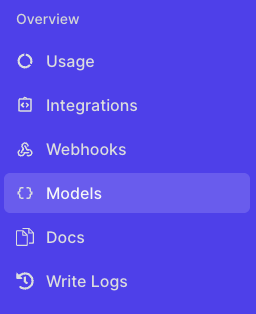
Click on any model to view the specific data types it includes, which can also be enabled/disabled.
For example: Selecting the Financial model reveals entities such as resident charges, recurring resident charges, and resident payments.
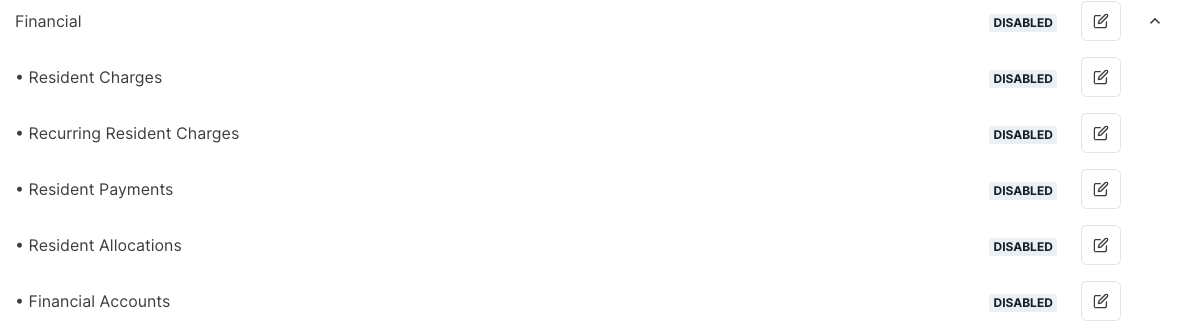
Enabling or Disabling Data Models
You can control model availability based on your integration needs:
In the Models tab, locate the model you want to modify.
Click the Edit button (right side of the model row).

In the configuration screen, you can:
Enable or disable the model entirely.
Choose to enable it only for specific PMS platforms, if needed.
⚠ You can also click a model to only enable/disable certain model elements (for example, if you want to enable Resident Charges under financial, but not Financial Accounts).
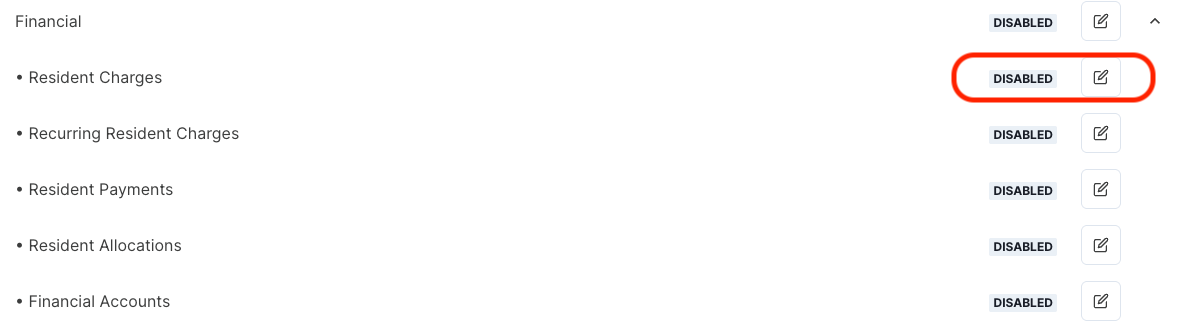
Disabling unused models can help streamline your data pipeline and reduce billing exposure.
Troubleshooting Access to Endpoints
If you're seeing data hydrated by certain Propexo API endpoints but no results in payloads for others, follow these steps:
Verify the Model is Enabled
Check if the corresponding data model is active for the integration in question.⚠ Run a Backsync if Needed
If the model is enabled but you're not seeing expected data, it's possible the expected data occurred before the lookback window when setting up an integration. Triggering a backsync can populate the model with historical data.Backsyncs are often necessary after enabling new models or sub-entities. If no sync has occurred yet, the endpoint will appear empty until one does.