Creating a Yardi SOAP integration
Last updated: March 16, 2026
This guide walks you through creating an integration with the Yardi API. You will need access to the customer name, company ID, interface username, interface password, database name, database server, the database platform, the interface entity/entity name, a license key, and an optional base URL.
Obtaining your credentials from Yardi
Yardi provides most of the credentials directly, which will be obtained during their QA process. You can find more information on this process here.
To obtain the company ID, refer to the URL when logged in. The ID will be after yardipcv.com, typically resembling this format: 1234tp5s6dev.
The interface username and password, as well as the database server, name, and platform must be provided by the customer, or directly by Yardi during the QA process. The interface entity will be provided directly by Yardi. The server name and database name are usually the same.
The License Key is provided by Yardi in its own email.
Integrating with Propexo
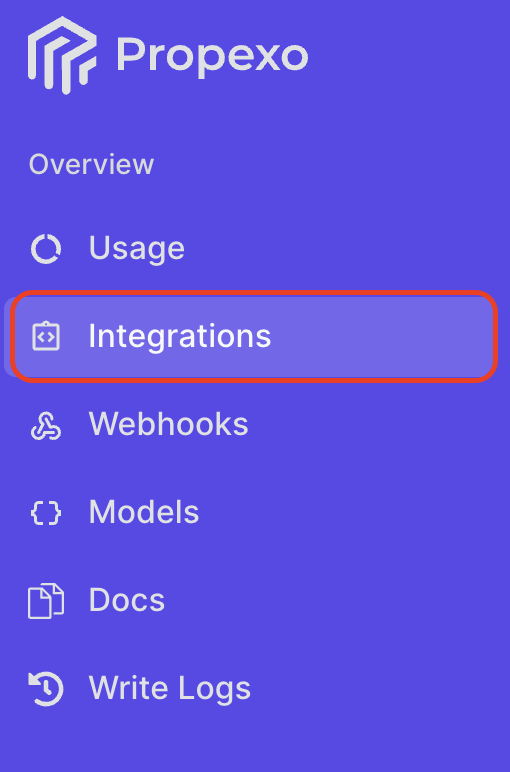
In Propexo, navigate to the integrations tab.
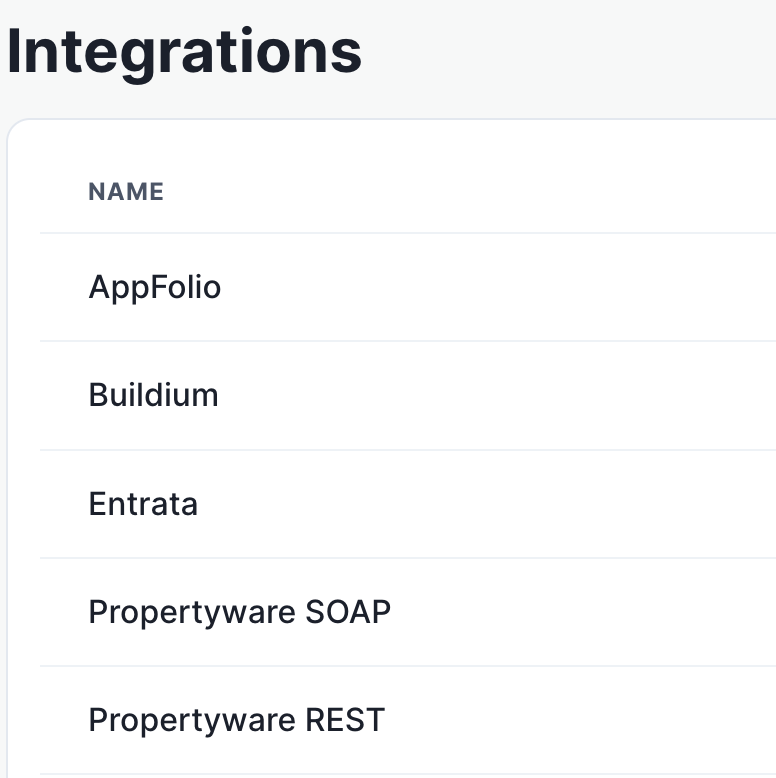
Then, select your relevant PMS from the list.
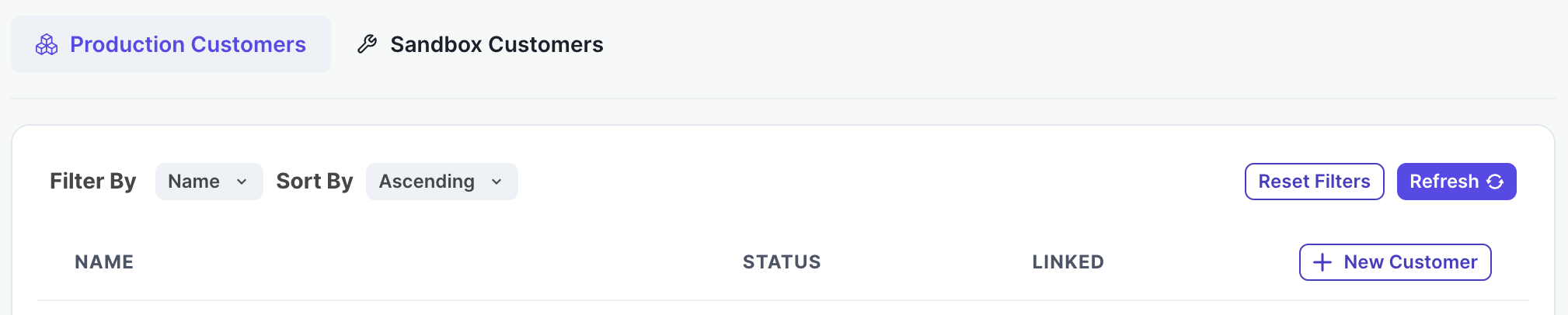
On the PMS page, select Production or Sandbox as necessary, then click New Customer.
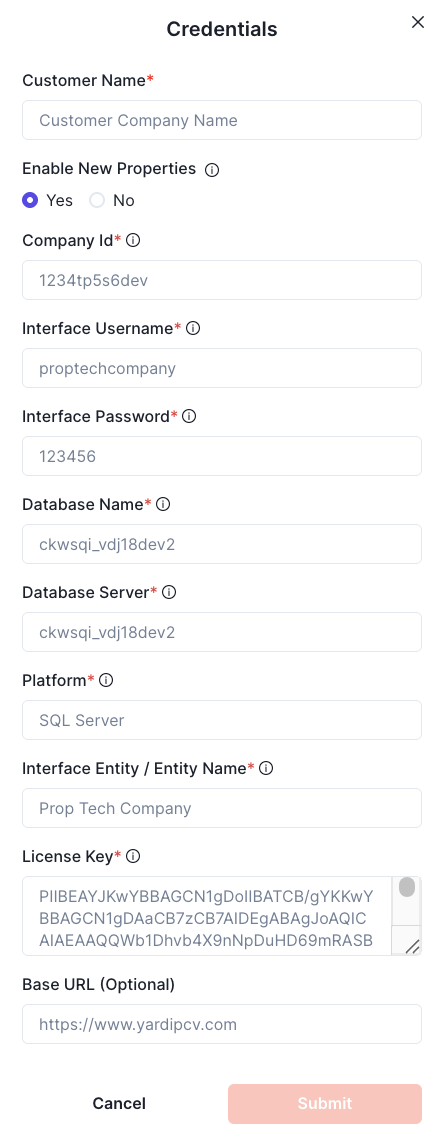
Enter your customer name, company ID, interface username, interface password, database name, database server, the database platform, the interface entity/entity name, a license key, and an optional base URL, then submit.
Your integration should now be correctly set up. You can verify your connection by using the data access panel.