Creating an Entrata integration
Last updated: July 21, 2025
This guide outlines how to create an integration with Entrata’s API. To proceed, you’ll need the following:
The company ID (sometimes called the client ID)
The customer name
The Entrata Vendor API key
Importantly, the property management company (PMC) must enable API access for your vendor account. Without this step, the integration will not function.
Note: the Property Management company will need to have added an API user for your company in order to set up the integration. Here's how they can do so:
Step 1: Have the PMC Enable API Access
Before any integration can occur, the PMC must enable an API user for your vendor account. Here’s how they can do it:
Log in to Entrata.
Locate the Company ID, which can be found in the URL. For example, if their Entrata URL is
realestate.entrata.com, the company ID isrealestate.
You'll need this ID later for integration setup.Navigate to API Access Settings: From the dashboard, the PMC should hover over the Apps menu, then select API Access.
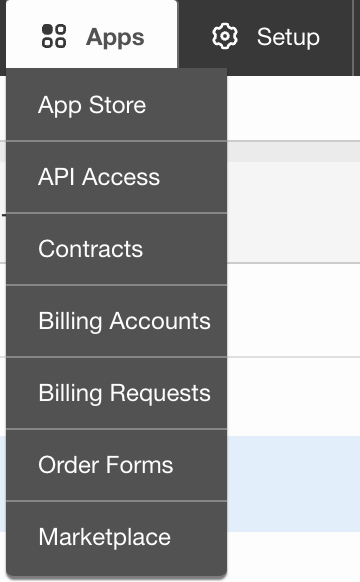
On the following page, select add API User. Search for the vendor's name, click enable access, set the included properties and then the required permissions. Click agree to API terms at the top.

The username and password generated at the end of this process can be ignored.
Once access is enabled, the PMC should inform the vendor so the integration can proceed.
Step 2: Locate Your Entrata API Key
Vendors can find their API key by logging into their developer portal.
Click Applications in the top-right, and select your application from the list.

Under your application, click the Subscriptions sub-tab.

Click on your Entrata API, and the API key will be visible on the right-hand side.

Integrating with Propexo
In Propexo, navigate to the integrations tab.
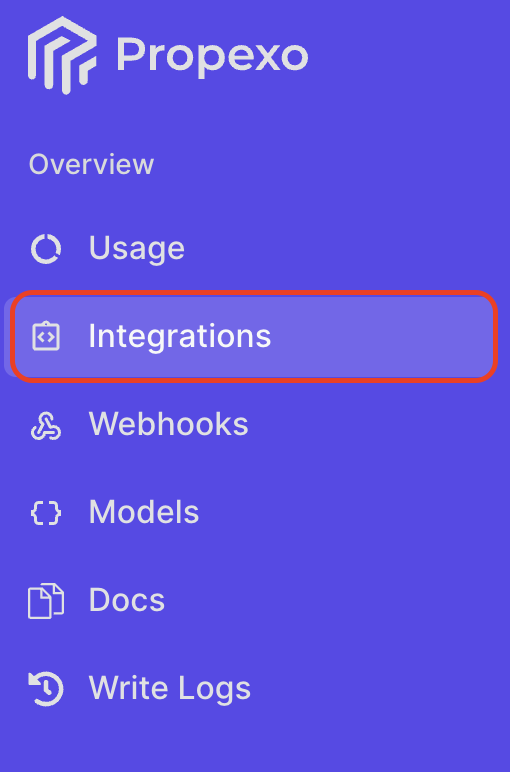
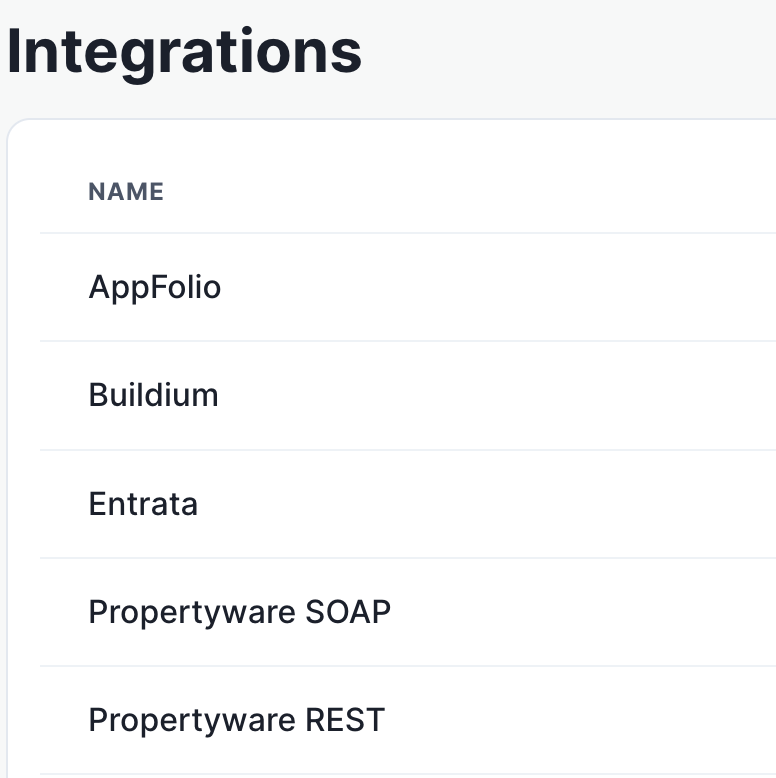
Then, select your relevant PMS from the list (Entrata in this instance).
On the PMS page, select Production or Sandbox as necessary, then click New Customer.
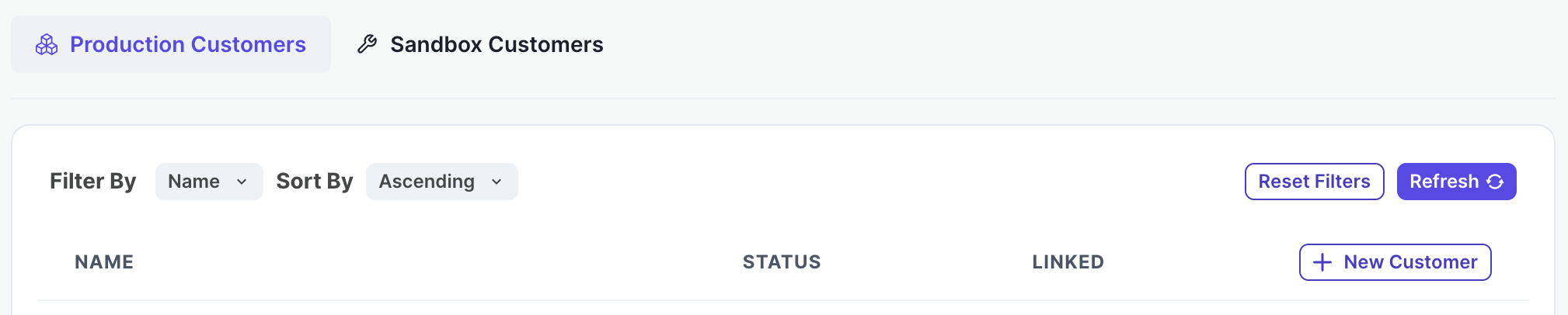
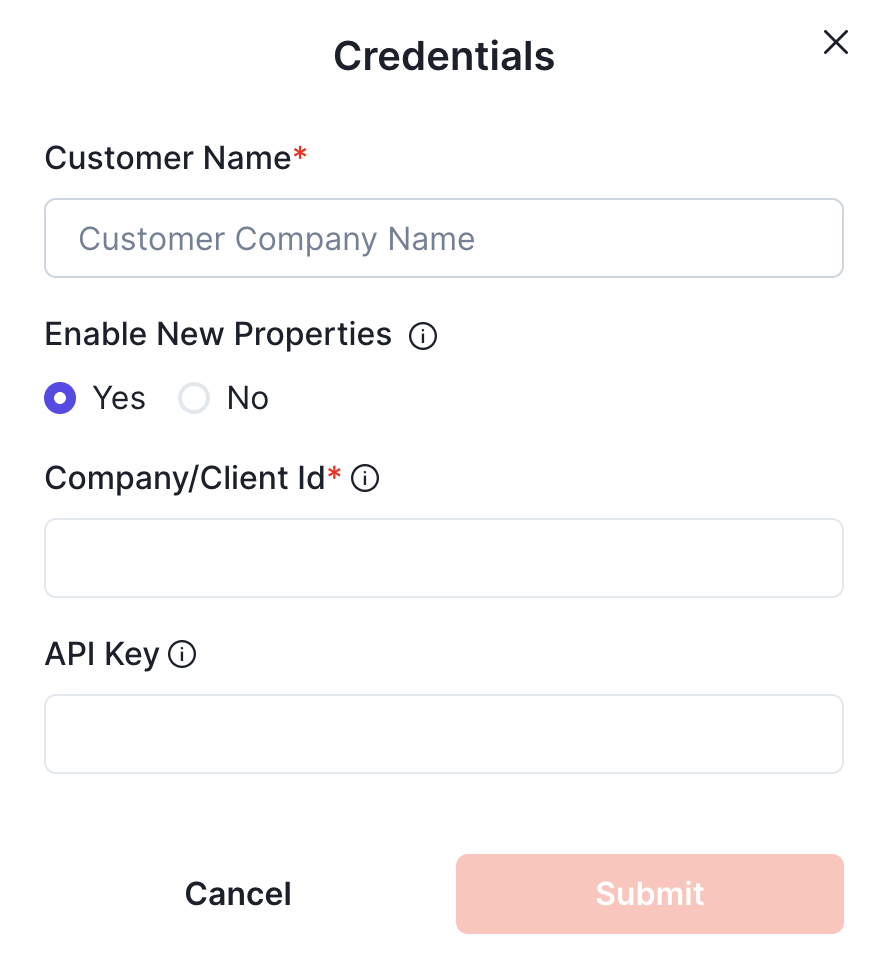
Enter your customer name, client ID, and API key, and submit.
⚠ If you have not had your integration approved by informing the Propexo team, the integration will not work.
Your integration should now be correctly set up. You can verify your connection by using the data access panel.