How to identify errors during a sync
Last updated: October 15, 2025
This article explains how to monitor your integration health and troubleshoot sync errors using two key tools: the Data Sync Dashboard and Integration Logs.
Using the Data Sync Dashboard
The Data Sync Dashboard provides a quick overview of any issues from your most recent sync.
To access the Data Sync Dashboard:
Navigate to your integration.
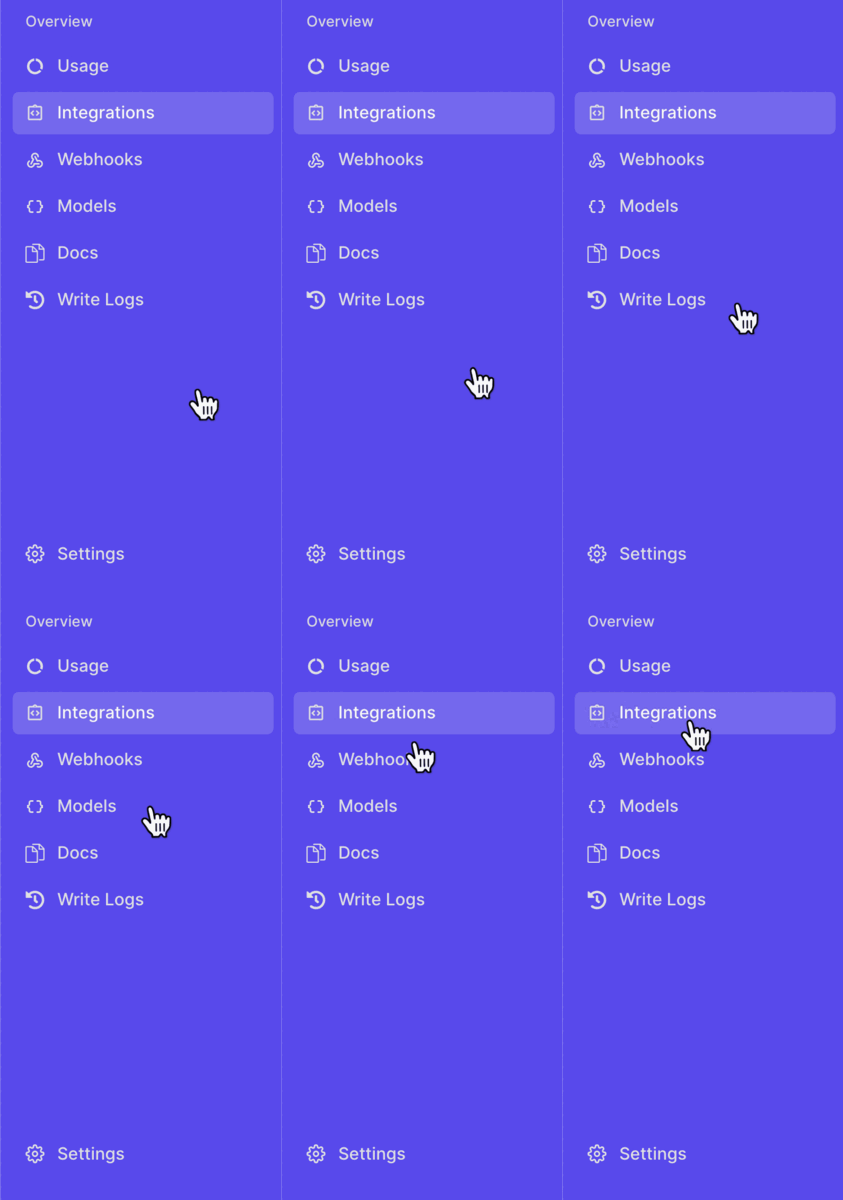
Scroll down to locate the Data Sync Dashboard section.
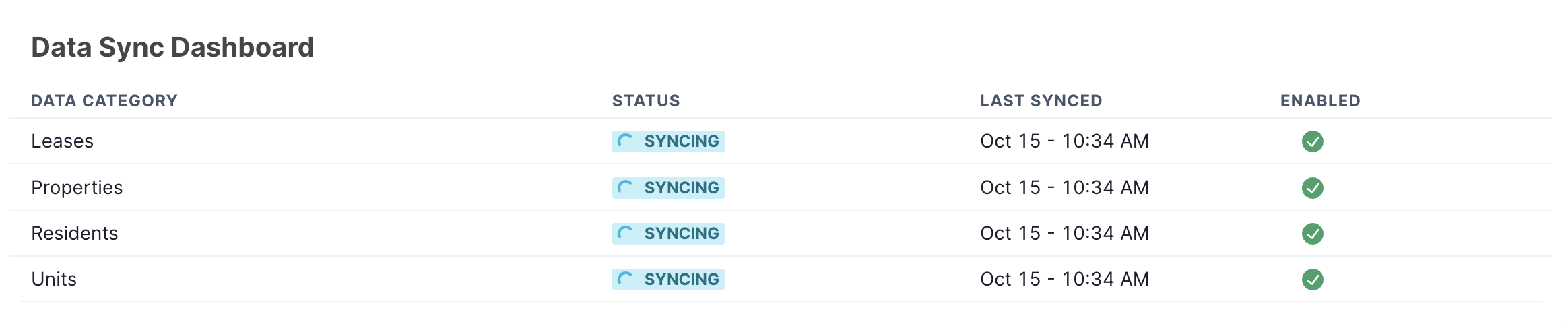
Review any displayed sync issues or errors.
Viewing Detailed Integration Logs
For more detailed troubleshooting, you can access comprehensive logs for any integration.
To view integration logs:
Go to your integration page.
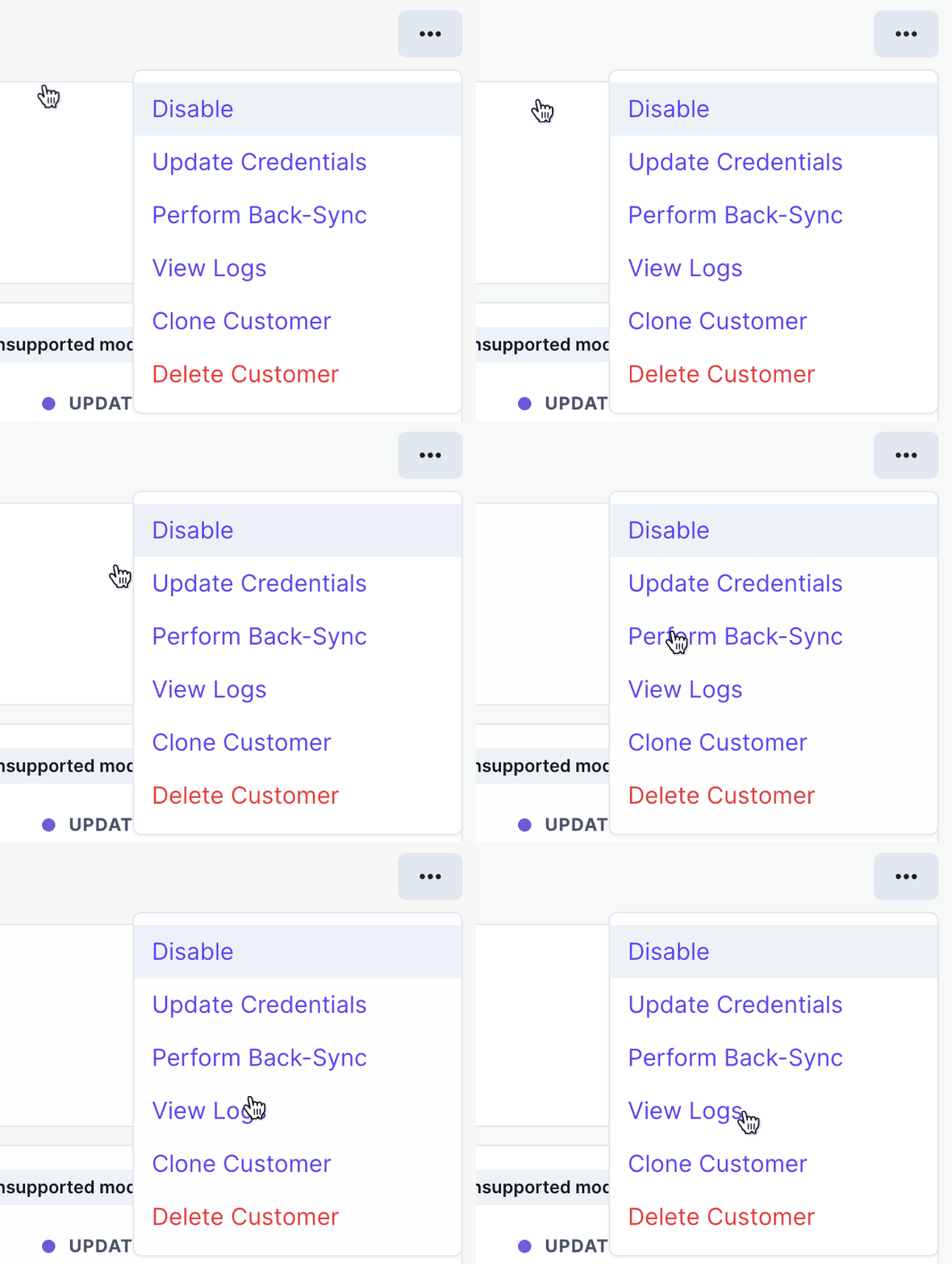
Click the three dots (action menu) on the right side of the screen.
Select "View Logs" from the dropdown menu
Choose the specific job type that encountered an error
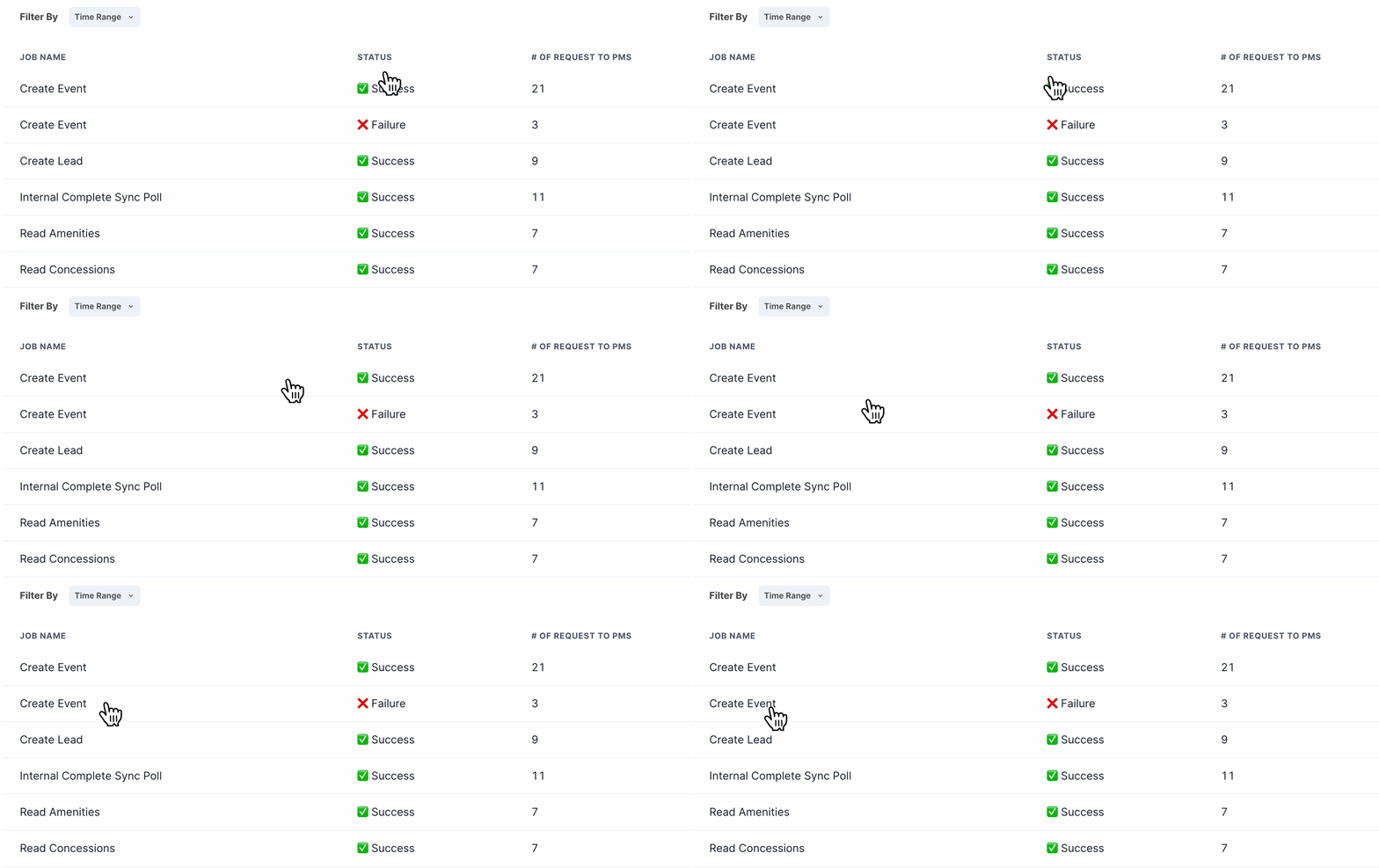
Review the request and response details to identify the root cause of the error
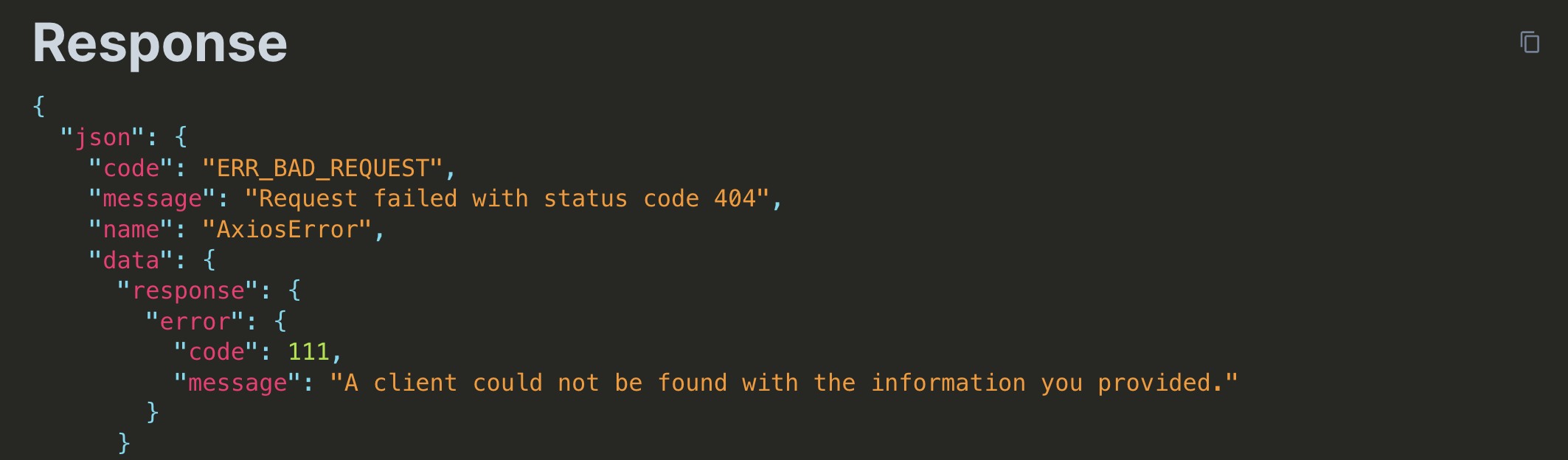
The logs provide complete request and response information, allowing you to diagnose exactly what went wrong during the integration process.
Example error response:
When to Use Each Tool
Data Sync Dashboard - Use for quick status checks and identifying recent sync issues
Integration Logs - Use for in-depth troubleshooting and understanding specific error details
Both tools work together to help you maintain healthy integrations and quickly resolve any issues that arise.