Setting up and viewing your custom sync schedule
Last updated: April 1, 2026
Custom Sync Schedules
Custom sync schedules allow you to control when and how often your property management system data is synchronized with Propexo.
Standard Custom Sync Schedules
You can configure different sync intervals based on the day of the week and time of day if you are in our Growth tier or above. For example, you might want more frequent syncs during business hours on weekdays and less frequent syncs on weekends.
Setting up standard schedules: Standard custom sync schedules can be configured directly through the sync schedule interface without assistance from our team.
Per-Model Custom Sync Schedules
Available on our Growth and Professional tiers, per-model scheduling gives you even more granular control by allowing different sync intervals for specific data models. For instance, you could sync lease data every hour while syncing maintenance requests every 15 minutes.
Setting up per-model schedules: Per-model custom sync schedules require assistance from our support team to configure. Once set up, you can view and monitor all your schedules (both standard and per-model) through the sync schedule interface.
To request a per-model custom sync schedule, please contact our support team with:
Your preferred sync interval for each model
The specific data models you want to schedule
Viewing Your Sync Schedule and Sync Recaps
Accessing the Sync Schedule View
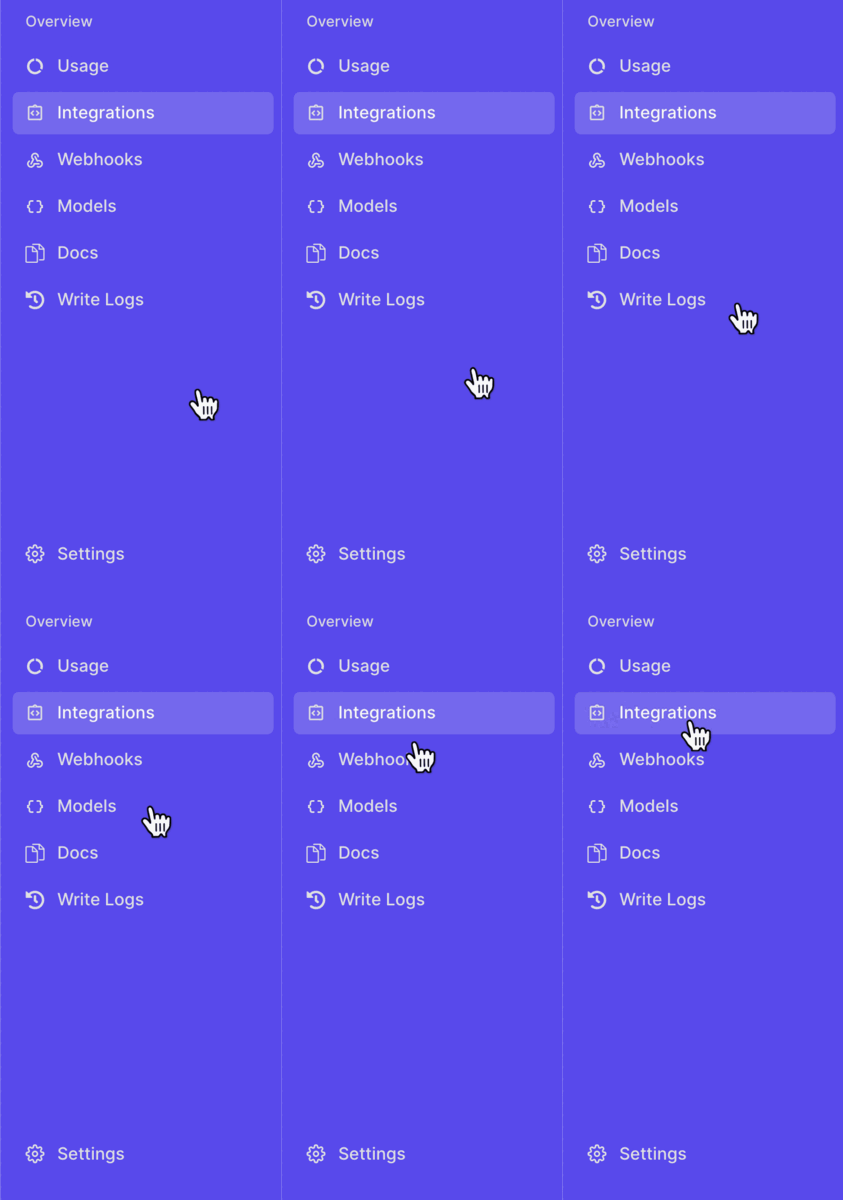
Navigate to the Integrations tab
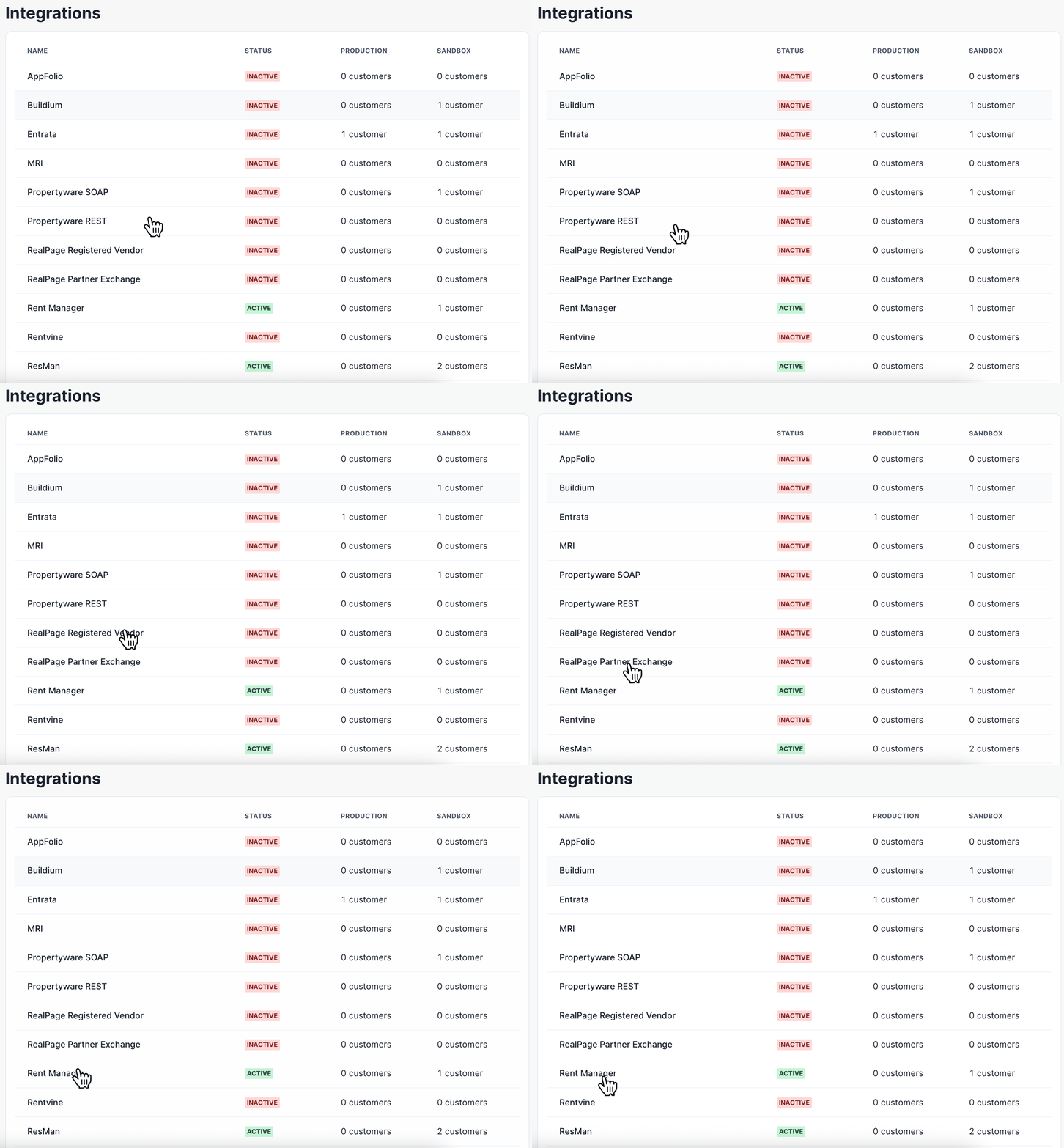
Select your integration vendor from the list
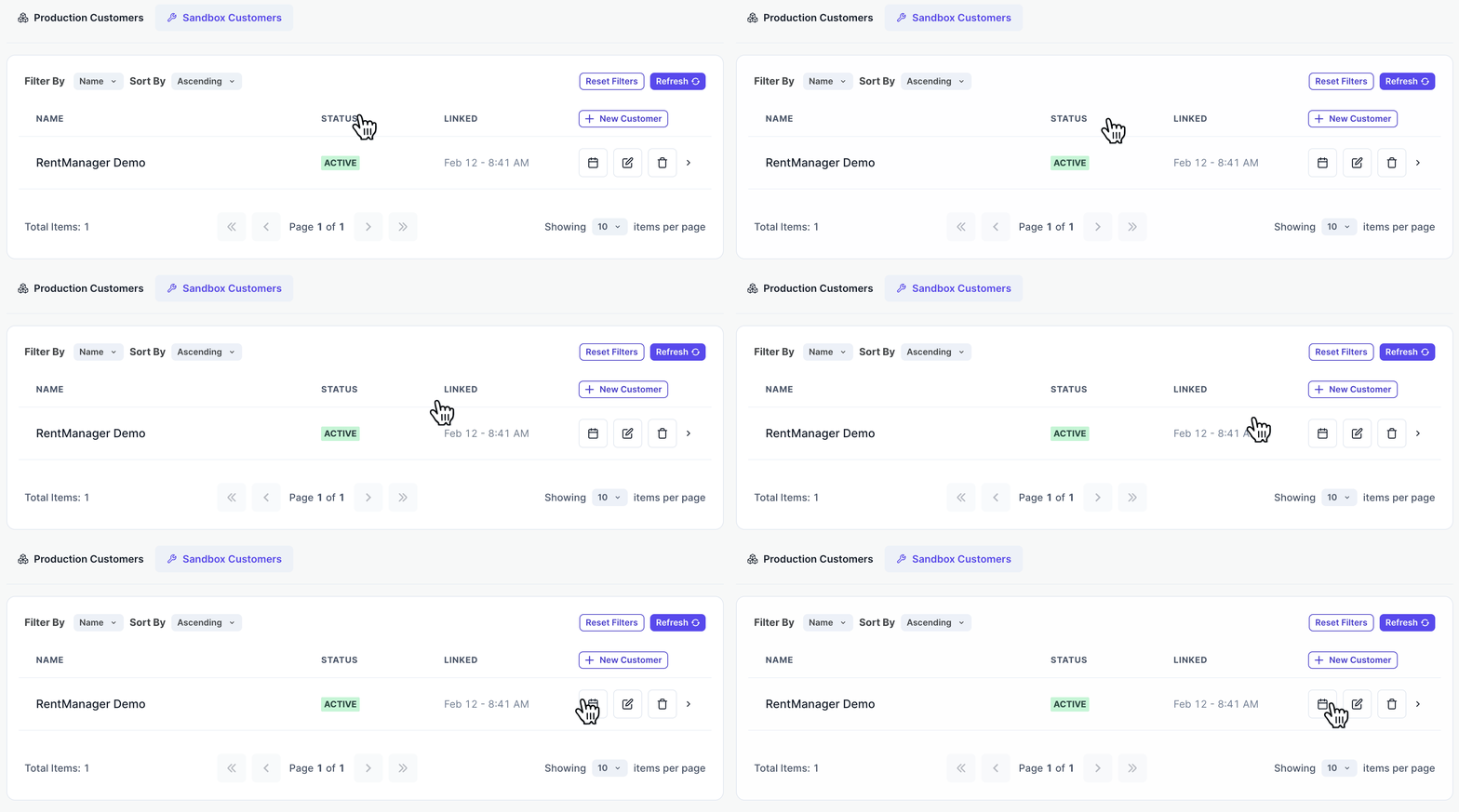
Locate your integration and click the calendar icon.
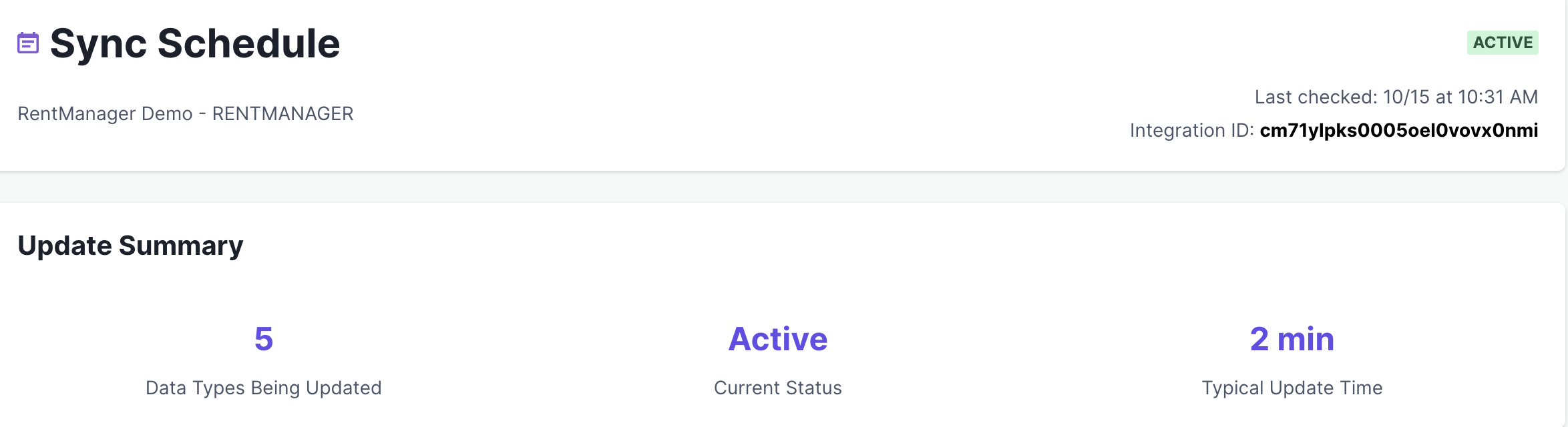
Understanding the Dashboard
The main sync schedule dashboard displays the following information:
Number of enabled models – Total models configured for syncing
Sync schedule status – Current operational status of your sync
Typical update time – Expected time for sync completion
Viewing Model Details
Scroll down to see detailed information for each enabled model:
Last sync date – When the most recent sync occurred
Last backsync date – When the most recent backsync occurred
Next sync date – When the next sync is scheduled
Schedule – The frequency and timing of syncs
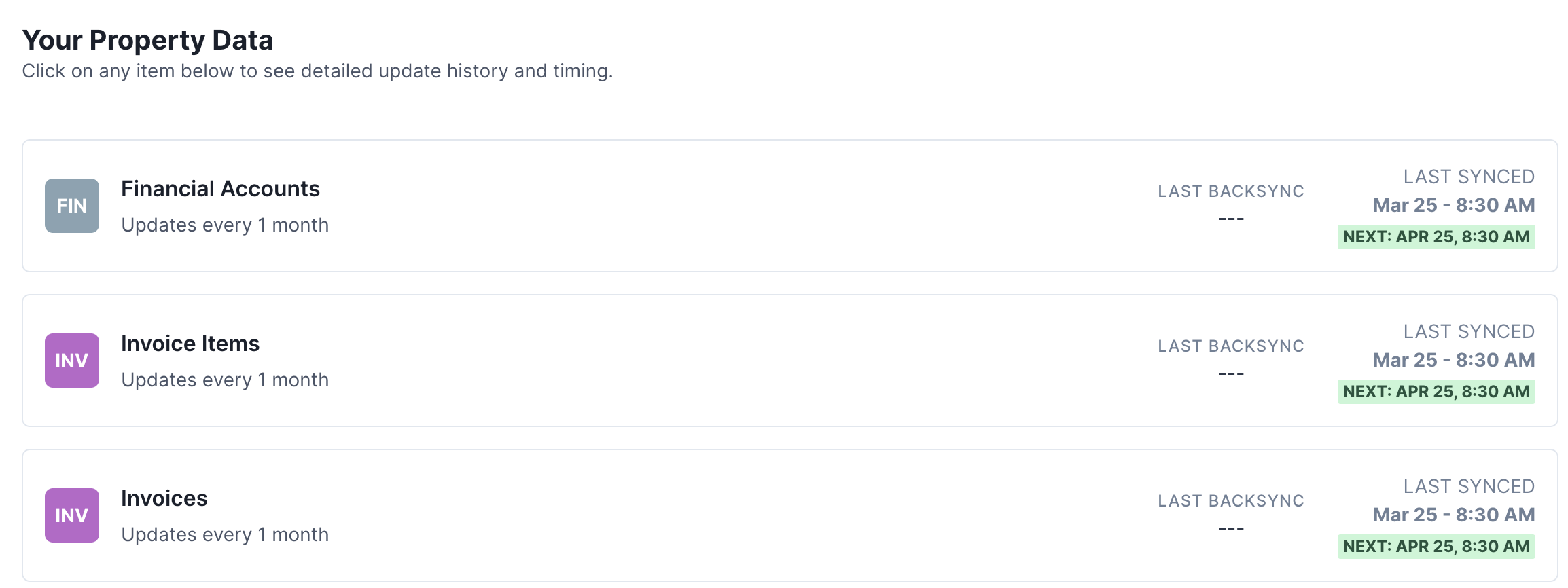
Click on any model to view a summary of recent syncs, including the number of records processed during the latest sync and typical update time.
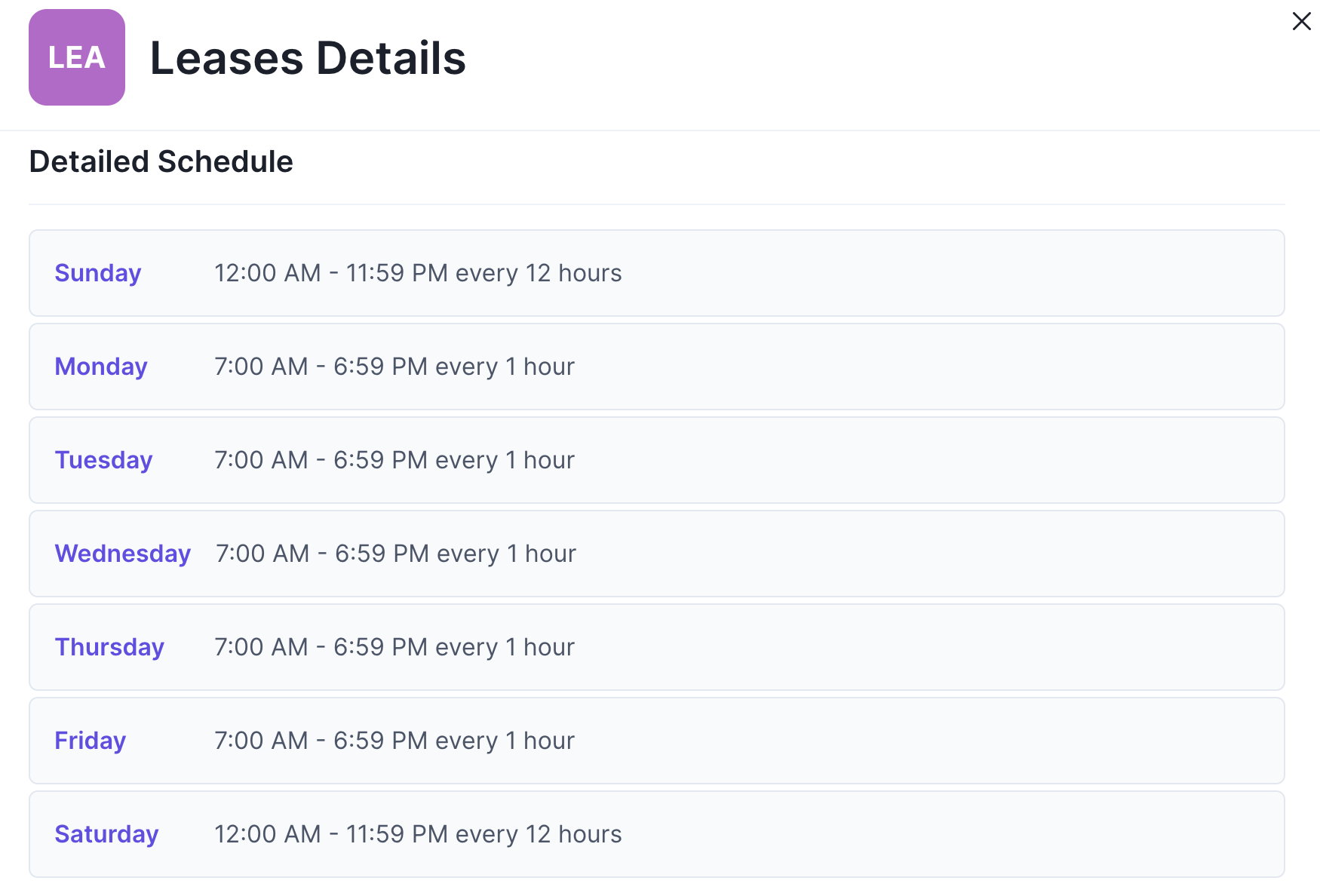
Weekday-Based Schedules
If your custom sync schedule is configured with specific weekdays, clicking on the model will display the complete weekday-based schedule details.
Need Help?
If you need to modify your custom sync schedule or have questions about sync performance, please contact our support team.